
DevOps & Cloud Topic
Docker & Kubernetes with Microservices Example
What is Docker?
Docker is a platform for containerizing applications. A container packages an application with all its dependencies (libraries, runtime, system tools) into a standardized unit that runs consistently across any environment.
How Docker Works:
-
Uses containerization (not virtualization)
-
Each container shares the host OS kernel but runs in isolated user spaces
-
Built from Dockerfiles (blueprints) that create Images
-
Images become running Containers
What is Kubernetes?
Kubernetes (K8s) is a container orchestration platform that automates deployment, scaling, and management of containerized applications.
How Kubernetes Works:
-
Manages clusters of containers across multiple machines
-
Handles scheduling, load balancing, health monitoring, and failover
-
Uses a declarative approach: you define the desired state, K8s makes it happen
Docker vs Kubernetes — Understanding the Difference
In modern software development, containerization and container orchestration play a crucial role in building scalable applications.
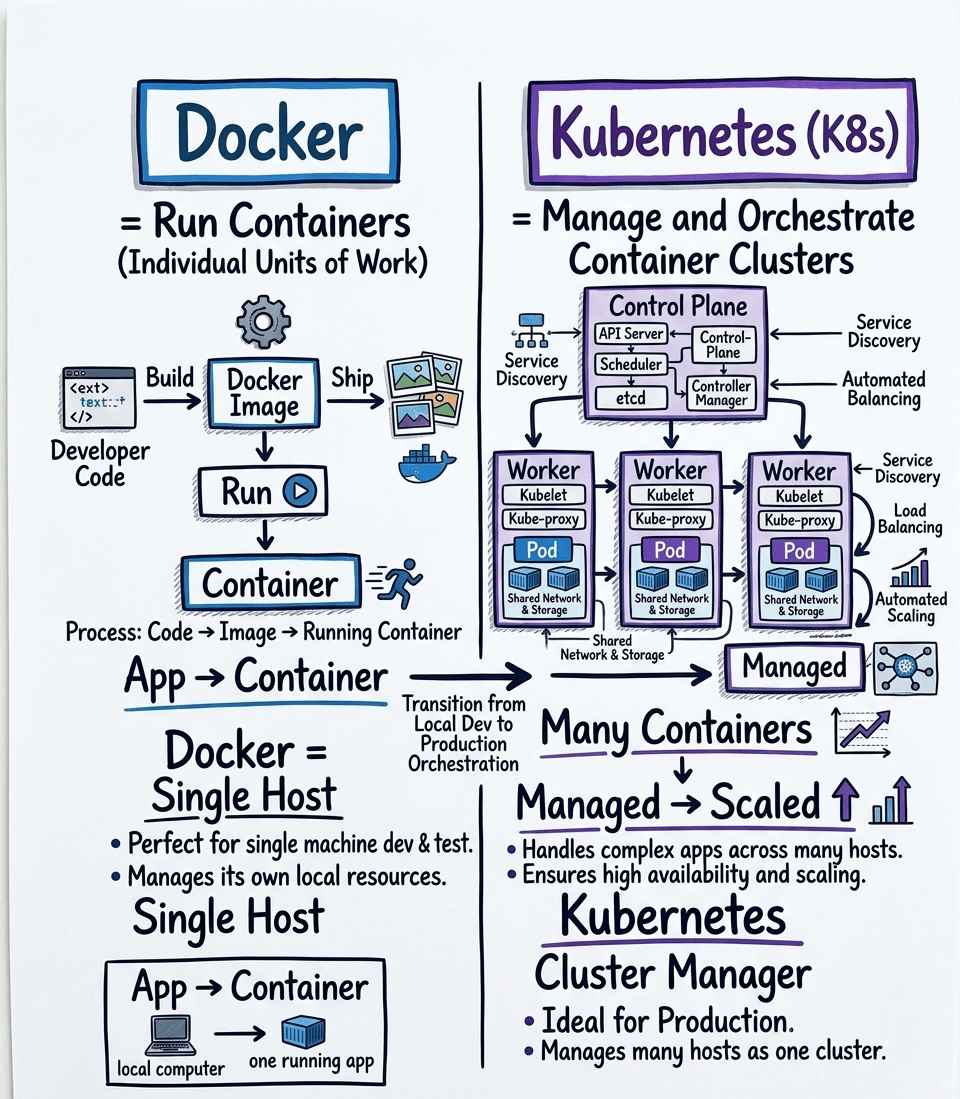
Docker helps developers create and run containers.
The workflow is simple:
Code → Image → Container
Docker packages an application with all its dependencies into a container so it can run consistently across different environments. It typically runs on a single host machine.
Kubernetes, on the other hand, is used to manage containers at scale.
It introduces a cluster architecture that includes:
Control Plane – manages the entire cluster
Worker Nodes – machines where applications run
Pods – smallest deployable unit containing containers
Kubernetes helps with:
- Container orchestration
- Automatic scaling
- Load balancing
- Self-healing systems
In simple terms:
Docker → Runs containers
Kubernetes → Manages many containers across multiple machines
Docker helps you package applications.
Kubernetes helps you run them reliably at scale.
Both together form the backbone of modern cloud-native applications.
Example: 3 Microservices E-commerce System
Architecture:
text
1. User Service      - Handles authentication & user profiles
2. Product Service   - Manages product catalog
3. Order Service     - Processes orders and payments
Step 1: Dockerize Each Service
Dockerfile for User Service:
dockerfile
# User Service Dockerfile
FROM node:18-alpine
WORKDIR /app
COPY package*.json ./
RUN npm install
COPY . .
EXPOSE 3000
CMD ["npm", "start"]
Build Docker Images:
bash
docker build -t user-service:1.0 ./user-service
docker build -t product-service:1.0 ./product-service
docker build -t order-service:1.0 ./order-service
Run Locally with Docker:
bash
docker run -d -p 3001:3000 --name user-service user-service:1.0
docker run -d -p 3002:3000 --name product-service product-service:1.0
docker run -d -p 3003:3000 --name order-service order-service:1.0
Step 2: Kubernetes Deployment
Kubernetes Configuration Files:
1. Deployment for User Service:
yaml
# user-deployment.yaml
apiVersion: apps/v1
kind: Deployment
metadata:
  name: user-service-deployment
spec:
  replicas: 3
  selector:
    matchLabels:
      app: user-service
  template:
    metadata:
      labels:
        app: user-service
    spec:
      containers:
      - name: user-service
        image: user-service:1.0
        ports:
        - containerPort: 3000
        env:
        - name: DB_HOST
          value: "user-db"
2. Service for User Service (Load Balancer):
yaml
# user-service.yaml
apiVersion: v1
kind: Service
metadata:
  name: user-service
spec:
  selector:
    app: user-service
  ports:
  - port: 80
    targetPort: 3000
  type: LoadBalancer
3. Similar files for product and order services
Step 3: Deploy to Kubernetes
bash
# Apply configurations
kubectl apply -f user-deployment.yaml
kubectl apply -f user-service.yaml
kubectl apply -f product-deployment.yaml
kubectl apply -f product-service.yaml
kubectl apply -f order-deployment.yaml
kubectl apply -f order-service.yaml

# Check status
kubectl get pods
kubectl get services
kubectl get deployments
Step 4: Kubernetes Features in Action
1. Scaling:
bash
# Scale user service to 5 instances
kubectl scale deployment user-service-deployment --replicas=5
2. Auto-healing:
-
If a container crashes, K8s automatically restarts it
-
If a node fails, K8s reschedules pods to healthy nodes
3. Load Balancing:
-
Kubernetes Service distributes traffic across all pods
-
External traffic routed through Ingress Controller
4. Rolling Updates:
bash
# Update user service to version 2.0
kubectl set image deployment/user-service-deployment \
  user-service=user-service:2.0
How They Work Together
text
Developer → Docker Image → Push to Registry → Kubernetes pulls → Runs containers
      ↓           ↓              ↓                  ↓               ↓
   Write code   Build      Store in Docker   Deploys to      Manages scaling,
   & Dockerfile container  Hub/Registry      Kubernetes      networking, health
Key Differences:
| Aspect | Docker | Kubernetes |
|---|---|---|
| Focus | Container creation & runtime | Container orchestration & management |
| Scale | Single host | Multiple hosts (clusters) |
| Networking | Basic container networking | Advanced service discovery & load balancing |
| Storage | Local volumes | Persistent volumes across cluster |
| Self-healing | Manual restart | Automatic failover & recovery |
Practical Workflow
-
Develop: Write microservice code + Dockerfile
-
Build:
docker build -t service:tag . -
Test: Run locally with Docker Compose
-
Push:
docker pushto container registry -
Deploy:
kubectl applyconfiguration files -
Manage: Kubernetes handles scaling, updates, networking
This setup gives you:
-
Portability: Runs anywhere (cloud, on-prem, local)
-
Scalability: Scale individual services independently
-
Resilience: Automatic failover and recovery
-
Efficiency: Optimal resource utilization across cluster
What is Docker Compose?
Docker Compose is a tool for defining and running multi-container Docker applications. It allows you to use a YAML file (docker-compose.yml) to configure all your application's services, networks, and volumes, then start everything with a single command.
Key Characteristics:
1. Development & Testing Focus
-
Primarily used for local development and testing
-
Runs on a single host (your machine)
-
Not designed for production or multi-host clusters
2. Simplified Multi-Service Management
Instead of running multiple docker run commands:
bash
docker run -d --name db postgres:13
docker run -d --name app --link db myapp:latest
docker run -d --name cache redis:alpine
With Docker Compose:
bash
docker-compose up
Example: Same 3 Microservices with Docker Compose
docker-compose.yml
yaml
version: '3.8'

services:
  # User Service
  user-service:
    build: ./user-service  # Build from Dockerfile in this directory
    ports:
      - "3001:3000"
    environment:
      - DB_HOST=user-db
      - DB_PORT=5432
      - REDIS_HOST=redis
    depends_on:
      - user-db
      - redis
    networks:
      - app-network
    volumes:
      - ./user-service:/app  # Mount code for hot-reload
      - user-logs:/app/logs

  # Product Service
  product-service:
    build: ./product-service
    ports:
      - "3002:3000"
    environment:
      - DB_HOST=product-db
    depends_on:
      - product-db
    networks:
      - app-network

  # Order Service
  order-service:
    build: ./order-service
    ports:
      - "3003:3000"
    environment:
      - USER_SERVICE_URL=http://user-service:3000
      - PRODUCT_SERVICE_URL=http://product-service:3000
    depends_on:
      - user-service
      - product-service
    networks:
      - app-network

  # Databases
  user-db:
    image: postgres:13
    environment:
      - POSTGRES_DB=users
      - POSTGRES_USER=admin
      - POSTGRES_PASSWORD=secret
    volumes:
      - user-db-data:/var/lib/postgresql/data
    networks:
      - app-network

  product-db:
    image: postgres:13
    environment:
      - POSTGRES_DB=products
      - POSTGRES_USER=admin
      - POSTGRES_PASSWORD=secret
    volumes:
      - product-db-data:/var/lib/postgresql/data
    networks:
      - app-network

  # Redis Cache
  redis:
    image: redis:alpine
    networks:
      - app-network

  # API Gateway (Optional)
  api-gateway:
    image: nginx:alpine
    ports:
      - "8080:80"
    volumes:
      - ./nginx.conf:/etc/nginx/nginx.conf
    depends_on:
      - user-service
      - product-service
      - order-service
    networks:
      - app-network

# Networks
networks:
  app-network:
    driver: bridge

# Volumes
volumes:
  user-db-data:
  product-db-data:
  user-logs:
Key Docker Compose Commands
bash
# Start all services
docker-compose up

# Start in background (detached)
docker-compose up -d

# Build images before starting
docker-compose up --build

# View running services
docker-compose ps

# View logs
docker-compose logs
docker-compose logs -f user-service  # Follow specific service

# Execute command in running container
docker-compose exec user-service bash
docker-compose exec user-db psql -U admin users

# Stop all services
docker-compose down

# Stop and remove volumes
docker-compose down -v

# Scale specific service
docker-compose up --scale user-service=3

# Check configuration
docker-compose config
Docker Compose vs Kubernetes
| Aspect | Docker Compose | Kubernetes |
|---|---|---|
| Purpose | Local development & testing | Production orchestration |
| Scope | Single host | Multiple hosts (cluster) |
| Scaling | Limited scaling (--scale) |
Advanced auto-scaling |
| Networking | Simple bridge networks | Complex networking & services |
| Load Balancing | Basic (round-robin) | Advanced (Ingress, Service Mesh) |
| Health Checks | Basic | Advanced liveness/readiness probes |
| Self-healing | Manual | Automatic |
| Config File | docker-compose.yml |
Multiple YAMLs (Deployment, Service, etc.) |
| Complexity | Simple | Complex |
| Learning Curve | Low | High |
When to Use Each?
Use Docker Compose for:
-
Local development environment
-
CI/CD pipeline testing
-
Quick prototypes and demos
-
Single-machine deployments
-
Learning container concepts
Use Kubernetes for:
-
Production deployments
-
Multi-host environments
-
High availability requirements
-
Auto-scaling needs
-
Complex microservices architectures
Real-World Workflow Example
Phase 1: Development (Docker Compose)
bash
# Clone project
git clone myapp
cd myapp

# Start all services with one command
docker-compose up

# Develop with hot-reload (code changes auto-refresh)
# Test APIs at http://localhost:3001, http://localhost:3002, etc.

# Add new service? Just add to docker-compose.yml
Phase 2: Production (Kubernetes)
bash
# Build production images
docker build -t myapp/user-service:v2 .

# Push to registry
docker push myapp/user-service:v2
# Deploy to Kubernetes
kubectl apply -f k8s/user-deployment.yaml
kubectl apply -f k8s/user-service.yaml

# Manage in production
kubectl get pods
kubectl scale deployment user-service --replicas=5
Advanced Docker Compose Features
1. Multiple Compose Files
bash
# Base configuration
docker-compose.yml

# Override for development
docker-compose.override.yml

# Production configuration
docker-compose.prod.yml

# Use together
docker-compose -f docker-compose.yml -f docker-compose.prod.yml up
2. Environment Variables
yaml
# docker-compose.yml
services:
  app:
    image: myapp:${TAG:-latest}
    environment:
      - DB_HOST=${DB_HOST}
bash

# .env file
TAG=v1.2
DB_HOST=production-db.example.com
3. Health Checks
yaml
services:
  web:
    image: nginx
    healthcheck:
      test: ["CMD", "curl", "-f", "http://localhost"]
      interval: 30s
      timeout: 10s
      retries: 3
4. Resource Limits
yaml
services:
  app:
    image: myapp
    deploy:
      resources:
        limits:
          cpus: '0.50'
          memory: 512M
        reservations:
          cpus: '0.25'
          memory: 256M
Common Use Cases
1. Full-Stack Application
yaml
services:
  frontend:
    build: ./frontend
    ports: ["80:3000"]

  backend:
    build: ./backend
    environment:
      - DB_HOST=database

  database:
    image: postgres:13
2. Data Science Stack
yaml
services:
  jupyter:
    image: jupyter/datascience-notebook
    ports: ["8888:8888"]
    volumes: [".:/home/jovyan/work"]

  postgres:
    image: postgres:13

  pgadmin:
    image: dpage/pgadmin4
    ports: ["5050:80"]
3. WordPress Site
yaml
services:
  wordpress:
    image: wordpress:php8.0
    ports: ["8080:80"]
    environment:
      - WORDPRESS_DB_HOST=db
      - WORDPRESS_DB_USER=wpuser

  db:
    image: mysql:8.0
    environment:
      - MYSQL_ROOT_PASSWORD=secret
Summary
Think of it as:
-
Docker = Building individual shipping containers
-
Docker Compose = Loading multiple containers onto a single ship (your laptop)
-
Kubernetes = Managing a fleet of ships across an ocean (production cluster)
For modern development, you'll typically use Docker Compose for local work and Kubernetes for production, often with the same Docker images working in both environments.


Comments (0)
No comments yet. Be the first to comment!